Converting charts with jubeatools#
This page explains how to use jubeatools via command line for people who are unfamiliar with the terminal.
Make sure you installed Python and jubeatools before reading this page.
jubeatools has no graphical user interface, to use it, you have to type commands in a terminal. If you are completely new to the terminal, this next section was made for you, otherwise you can skip it.
Primer on the terminal#
The terminal is a text interface to your computer, you type in a command, it does something in response, and maybe displays some text to tell you what it just did.
It’s basically File Explorer but in text#
At any given time while using the terminal you will be “in” a folder, just like when using File Explorer on Windows.
On Windows, in both cmd.exe and PowerShell, the current directory
(this folder you are in) is displayed on the left as part of the prompt
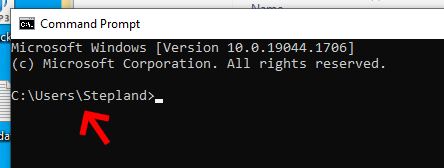
Here as you can see I’m inside C:\Users\Stepland#
On Linux and macOS, the current directory might not be displayed in the prompt.
You can use the pwd command to display it (pwd as in Print Working
Directory)
Tab triggers autocomplete#
Typing long paths is tedious, luckily the terminal can help you. Start typing
your command (cd ...something...) then hit Tab before finishing, the terminal will
try to the fill in the rest of the folder or file name you were trying to type,
this can be chained multiple times in a row to type a longer path :
Type the first few characters of the folder
Tab (maybe more than once if several folders match)
Type the first few characters of the sub-folder
Tab again
etc etc …
Using jubeatools in a terminal#
Now that you know the commands to move around, let’s learn how to use jubeatools itself as a command.
jubeatools expects arguments like this :
$ jubeatools (input) (output) -f (output format) (options)
Let’s break this down :
$is a common way to represent a terminal prompt in computer litterature, it is not part of the actual command, you don’t have to type it. It’s just some sort of punctuation mark to remind you that whatever comes after it is a command, and can be typed in a terminal.jubeatoolsis the command(input)is the path of the chart file you want to convert(output)is the path of the converted chart file you want to create-f (output format)is the output format you want jubeatools to use(options)are the extra options you might want to use (see Command-line Interface)
Example#
Say you have a memo file called sigsig.txt and you want to convert it to
memon 1.0.0, then you would open up a terminal, navigate to the folder where
sigsig.txt is, then type the following command :
$ jubeatools sigsig.txt sigsig.memon -f memon:v1.0.0
This will create a file called sigsig.memon in the same folder.
Formats#
Each format jubeatools supports has a precise name you need to use for the
-f option :
name |
||
|---|---|---|
memon |
v1.0.0 |
|
v0.3.0 |
|
|
v0.2.0 |
|
|
v0.1.0 |
|
|
legacy |
|
|
jubeat analyser |
#memo2 |
|
#memo1 |
|
|
#memo |
|
|
mono-column (1列形式) |
|
|
iboogie |
|
|
jubeat (arcade) |
.eve |
|
jubeat plus |
.jbsq |
|
malody |
.mc (Pad Mode) |
|
yubiosi |
v1.0 |
|
v1.5 |
|
|
v2.0 |
|
Options#
Options are documented here : Command-line Interface